Two-way sync
Save a file and it's in the cloud within seconds. Changes from the cloud download automatically on your chosen schedule.
Native Linux desktop app · Flatpak
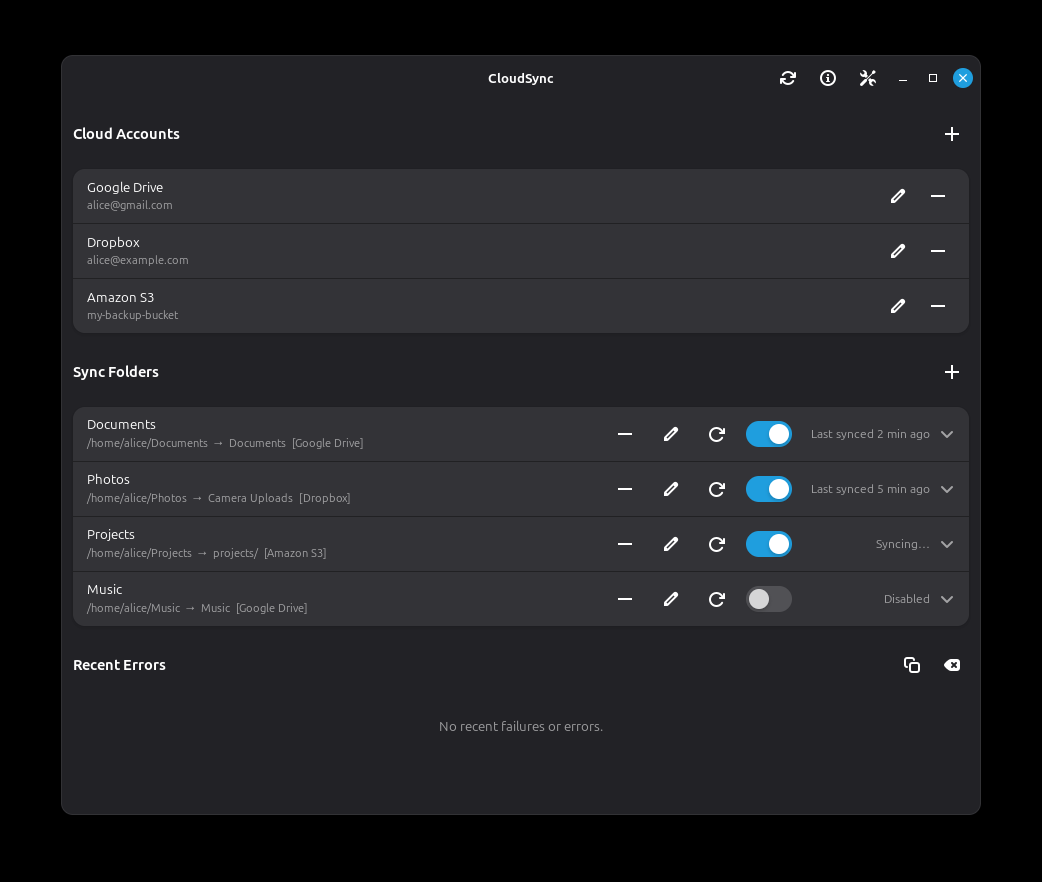
CloudSync watches your local folders and keeps them in perfect sync with Google Drive, OneDrive, Dropbox, Amazon S3, Backblaze B2, Cloudflare R2, Wasabi, and more — automatically, in the background.
Works with the services you already use
What makes it different
Save a file and it's in the cloud within seconds. Changes from the cloud download automatically on your chosen schedule.
Each folder has its own sync interval (30 s, 1 min, 5 min, 15 min) and conflict strategy — or inherit the global defaults. Hit "Sync now" to trigger an immediate sync for any single folder without waiting.
When the same file changes in two places, you decide: keep both copies, keep yours, or keep the cloud version.
Close the window and CloudSync keeps running quietly in the system tray. Turn on autostart and it's ready before you even open the app.
A step-by-step setup wizard walks you through connecting your accounts and choosing your first sync folder.
Cloud account logins are stored only on your computer and are never sent anywhere else.
How it works
Download the Flatpak bundle and install it — see the installation instructions below.
The setup wizard guides you through signing in, choosing a remote cloud folder, and picking a local folder to pair with it — no technical setup required.
CloudSync runs in the background. Your files are always where you need them.
Why CloudSync
Keep files in perfect sync with Google Drive, OneDrive, Dropbox, Amazon S3, Backblaze B2, Cloudflare R2, Wasabi, and more — with full Linux Flatpak support.
Install once and get updates through the Flatpak ecosystem, so CloudSync stays current on Ubuntu, Fedora, Pop!_OS, Linux Mint, and Arch Linux.
Choose sync intervals, keep credentials local, and resolve file conflicts on your terms — designed for Linux desktop users who need reliable cloud backup.
Installation
Open a terminal application (search for "Terminal" in your app menu), then paste:
sudo flatpak remote-add --if-not-exists flathub https://dl.flathub.org/repo/flathub.flatpakrepo && sudo flatpak remote-add --if-not-exists cloudsync https://cloudsync.seravault.com/cloudsync.flatpakrepo && sudo flatpak install -y cloudsync com.seravault.cloudsync
Press Enter, then enter your password if asked to confirm. This adds Flathub (for the GNOME runtime CloudSync depends on) and our update repo system-wide, then installs CloudSync — future updates will be delivered automatically through your system's update manager (GNOME Software, KDE Discover, etc).
Prefer no terminal?
To get automatic updates, download cloudsync.flatpakrepo and open it — GNOME Software and KDE Discover will prompt you to add the CloudSync repo. Then search for "CloudSync" and install.
Alternatively, download com.seravault.cloudsync.flatpak for a standalone install without the update repo.
Find the file in your Downloads folder and double-click it. On most distributions this opens a installer window — click Install and you're done.
Open CloudSync from your app menu. The setup wizard will walk you through connecting your first cloud account.
CloudSync updates itself automatically after the first launch — no matter which install method you used above.
Free to use with 1 cloud provider and 1 sync folder. $9.99/year unlocks unlimited providers and folders — subscribe anytime from inside the app.
FAQ
Any distribution that supports Flatpak — Ubuntu, Fedora, Pop!_OS, Linux Mint, Arch, and more.
The free tier is permanently available and lets you sync one cloud provider and one folder. A subscription removes those limits and adds automatic updates.
Open Preferences → Subscription, enter the email you used at checkout, and click Sign In. The app verifies and unlocks everything right away. If activation doesn't work, allow a minute or two after purchase for Stripe to confirm payment, and make sure you're entering the exact checkout email.
CloudSync keeps running with all your existing folders and accounts intact, and updates continue as normal. The only change is that free tier limits (1 provider, 1 sync folder) are re-applied until you renew. To renew, open Preferences → Subscription in the app, or contact cloudsync@seravault.com.
Check that s3:ListBucket is granted on the bucket ARN (not the object ARN), and that s3:GetObject, s3:PutObject, and s3:DeleteObject are on bucket/*. Verify the region matches the bucket's actual region, and look for any explicit Deny statements in your bucket policy or AWS Service Control Policies — these override Allow rules.
Make sure the folder's toggle is enabled in the main window. Check that your cloud account has free space. Open the Recent Errors section at the bottom of the main window for specific error details.
Ready to stop moving files by hand?
Free to start. Upgrade anytime from inside the app.